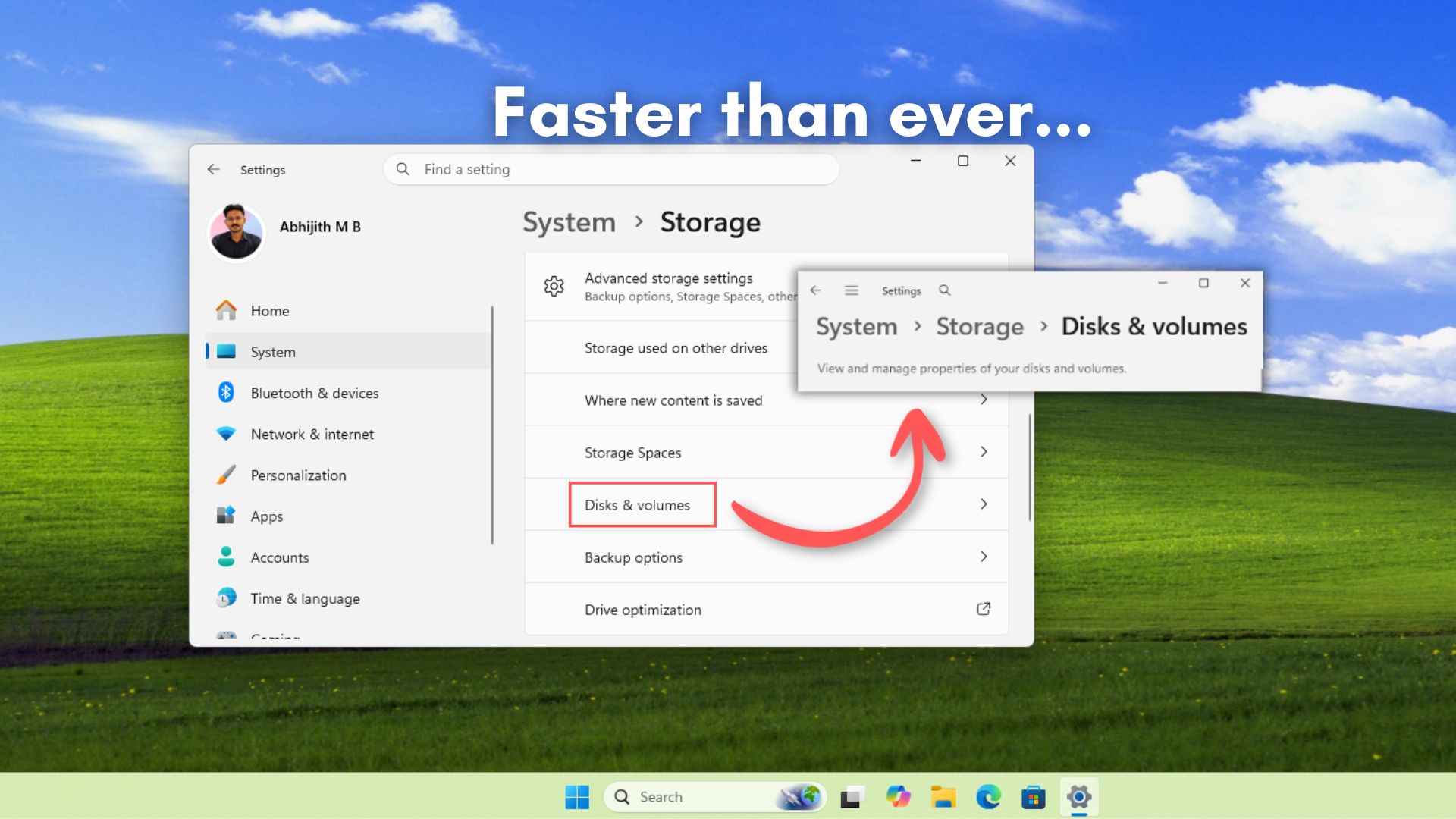
Microsoft has rolled out new storage improvements in the latest Windows 11 Insider builds, including Dev build 26300.8170 and Beta build 26220.8165. These changes focus on faster storage settings, a better user experience, and removing an artificial limitation that existed for decades.

The update improves performance when navigating Settings > System > Storage > Advanced Storage Settings > Disks & Volumes, which is where you check drive properties, partitions, and storage details. Microsoft has also changed how the Storage page handles permissions, so the UAC prompt no longer appears immediately and only shows up when accessing temporary files.
Alongside that, Windows now allows formatting FAT32 drives up to 2TB via the command line, replacing the long-standing 32GB limit that existed for decades despite the filesystem supporting much larger volumes internally.
Opening disk properties on large drives has been unusually slow for a long time, especially on systems with multiple or high-capacity volumes.

I tested this myself on multiple drives, and the difference is bigger than I thought.
Windows 11 finally fixes slow storage settings on large drives
Changing drive properties from the Settings app wasn’t something I used to do, because my muscle memory clicks the Windows key and X, opening the Disk Management tool.

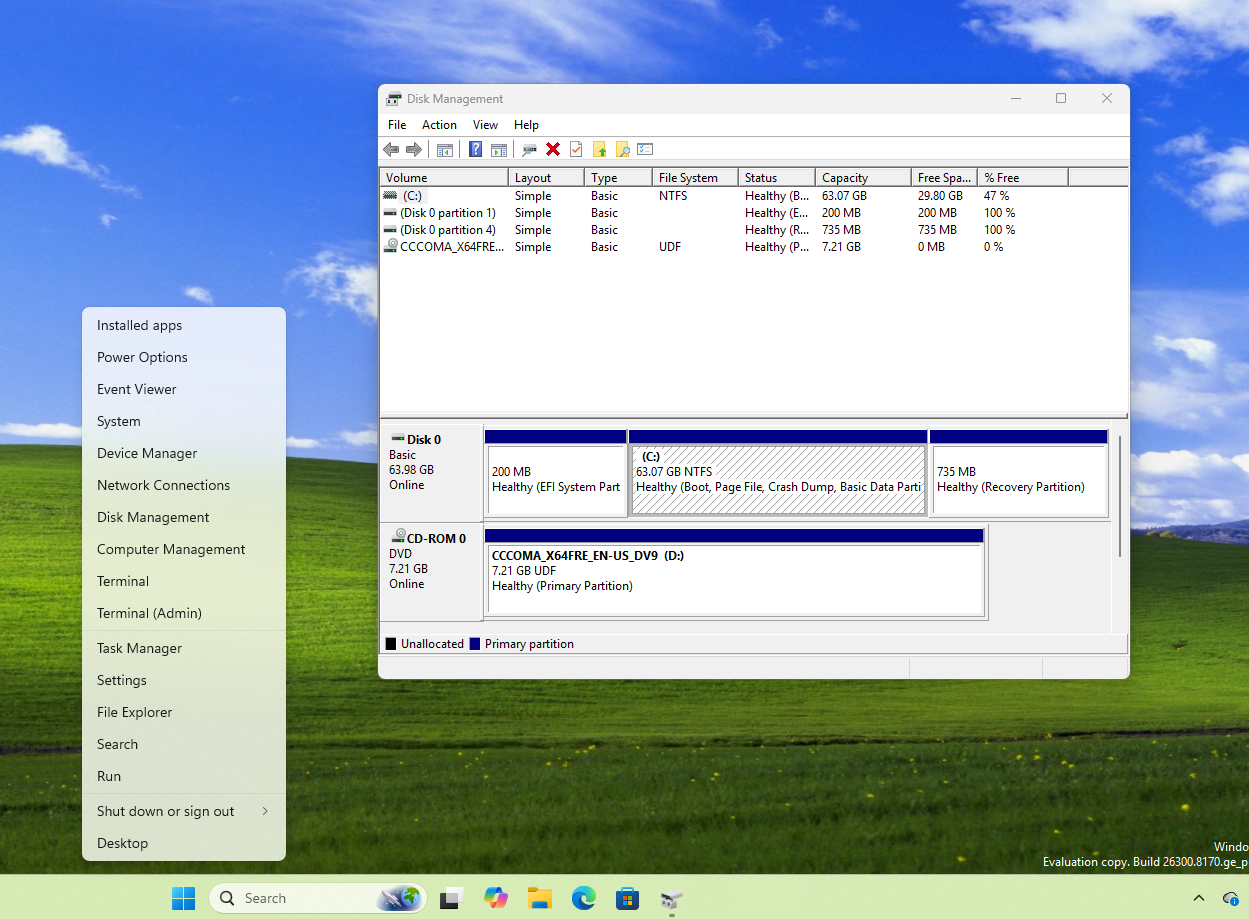
Although it looks decades old, which it is by the way, it still gets the job done. But I understand that I’ll have to force myself to use the latest tools if I want to see Windows lose legacy code.
That said, slow performance when going to see storage on large volumes from the Disk & Volumes page is a major annoyance. If you have a system with larger drives, especially mechanical HDDs with multiple partitions, opening Disks & Volumes and clicking on a drive’s properties could take an unusually long time to load.
In my case, it consistently took around 15 seconds for the page to fully respond.
Here is my PC opening the Storage settings for a 130GB Drive:
Yes, it took almost 15 seconds. Here’s the same thing on a 292GB drive:
Checking a third time with a 409GB drive:
All this was done on a 1TB mechanical hard drive split into multiple partitions, with different types of files across them. My PC itself wasn’t under load, and there weren’t many background apps running.
The issue becomes worse when you have larger volumes or multiple drives connected, because the Settings app has to query more data before rendering the UI.
Fortunately, Microsoft has finally improved the performance of Storage settings.
Microsoft’s release notes for the Dev build 26300.8170 and Beta build 26220.8165 simply mention “improved performance when navigating storage on large volumes,” but the actual change is more significant. The delay when opening disk properties is almost gone in the new Insider build.
To confirm that this wasn’t just hardware differences, I tested the same scenario inside a virtual machine running the latest Insider build. This VM only has 4GB RAM and 2 CPU cores, far less capable than my main system. Yet, opening disk properties was almost instant.
Yes, it’s instant. And I wasn’t expecting a massive improvement like this.
So why was this slow before? The likely cause comes down to how the modern Settings app handles storage data. Unlike legacy tools, it uses newer UI layers and background queries to fetch disk information, partitions, file system details, and usage data.
On larger drives, especially HDDs, this can take longer due to slower read speeds and the amount of metadata involved. If those queries are handled inefficiently or synchronously, the UI ends up waiting instead of rendering immediately.
This seems to be what Microsoft has addressed here. The faster response may be due to better handling of data fetching and UI rendering, possibly by optimizing how disk information is loaded or by reducing blocking operations.
Alongside this performance improvement, Microsoft is also updating a long-standing limitation in Windows file systems.
FAT32 limit jump from 32GB to 2TB is an important change in Windows
Until now, Windows has only allowed formatting FAT32 drives up to 32GB using its built-in tools, which wasn’t because of the file system itself. FAT32 has always supported much larger volumes, theoretically up to 2TB with standard sector sizes. The restriction was something Microsoft imposed inside Windows.
With this update for Windows Insiders, that artificial limit is gone, at least through the command line. You can now format FAT32 volumes up to 2TB natively without relying on third-party tools.
The original 32GB cap goes back to a time when large drives were rare and FAT32 wasn’t considered efficient at scale. It suffers from fragmentation and lacks features like journaling, which makes it less reliable compared to NTFS. Microsoft’s approach back then was to push users toward NTFS for internal drives and later exFAT for removable storage.
Their strategy worked, but it also meant that anyone who needed FAT32 for compatibility had to jump through unnecessary hoops.
Even today, FAT32 is still required in a surprising number of scenarios. Firmware updates for motherboards usually need a FAT32-formatted USB drive. Some gaming consoles and media devices also expect FAT32 for detection. Embedded systems and older hardware still depend on it as well.
That said, FAT32 comes with its own constraints. The most obvious one is the 4GB file size limit, which makes it impractical for modern workloads like large video files or backups. It’s not a replacement for NTFS or exFAT, and it’s not meant to be.
Storage settings now avoid unnecessary UAC prompts
Earlier, opening Settings > System > Storage could immediately trigger a UAC prompt, even if you were just trying to view basic storage information, which didn’t make much sense for a read-only action.
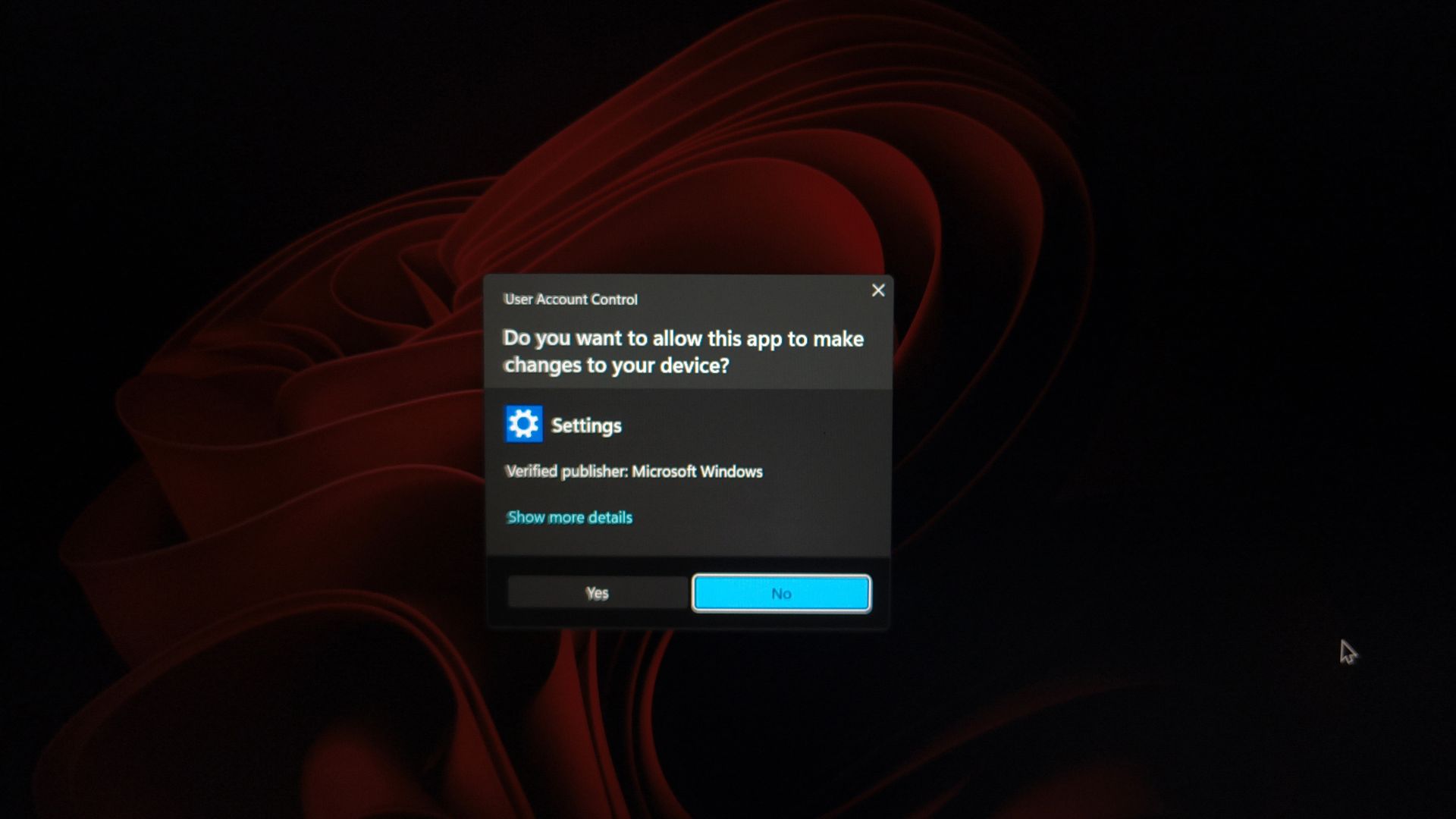
Now, the UAC prompt only appears when you access areas that require elevated permissions, such as viewing or managing temporary files.
Bigger improvements are coming soon to Windows 11
These storage improvements are currently available in Windows 11 Insider builds (Dev 26300.8170 and Beta 26220.8165). Microsoft hasn’t shared a timeline for stable rollout, but changes like these usually make it to regular users in the next few months or maybe even weeks.
With all the hatred from social media, I was, weirdly enough, not expecting Microsoft to be skilled enough to fix a part of Windows 11 that made it feel slow. Now that they have proved me wrong, it gives me hope that the development team can pull off everything that Microsoft is planning to fix in Windows 11.
